The Isolation Friction of Multi-Container Apps
If you are used to working with standalone containers, you treat a single container as your basic unit of deployment. You run a container for your app, and you scale it by spinning up more instances. However, production applications often require helper processes.
For instance, your main web application container might write logs to a file on disk, and you need a log-shipping agent (like Fluentd) to read those files and forward them to a central server. If you run these two containers independently on a host, sharing resources is difficult. They do not share a filesystem namespace by default, making it hard to access the log files, and they cannot communicate over local interfaces without complex port mapping configurations.
If the main app container crashes, the helper container will continue running, wasting host resources.
The Pod Abstraction Layer and the Pause Container
Kubernetes resolves this by introducing the Pod. You do not deploy containers directly; you deploy Pods. A Pod is a wrapper that encapsulates one or more containers.
To share resources, every Pod starts a hidden infrastructure container called the pause container (or sandbox container). The pause container’s sole purpose is to initialize and hold the Linux namespaces (Network, IPC, and UTS) and cgroups. When your application containers launch inside the Pod, they join these namespaces held by the pause container.
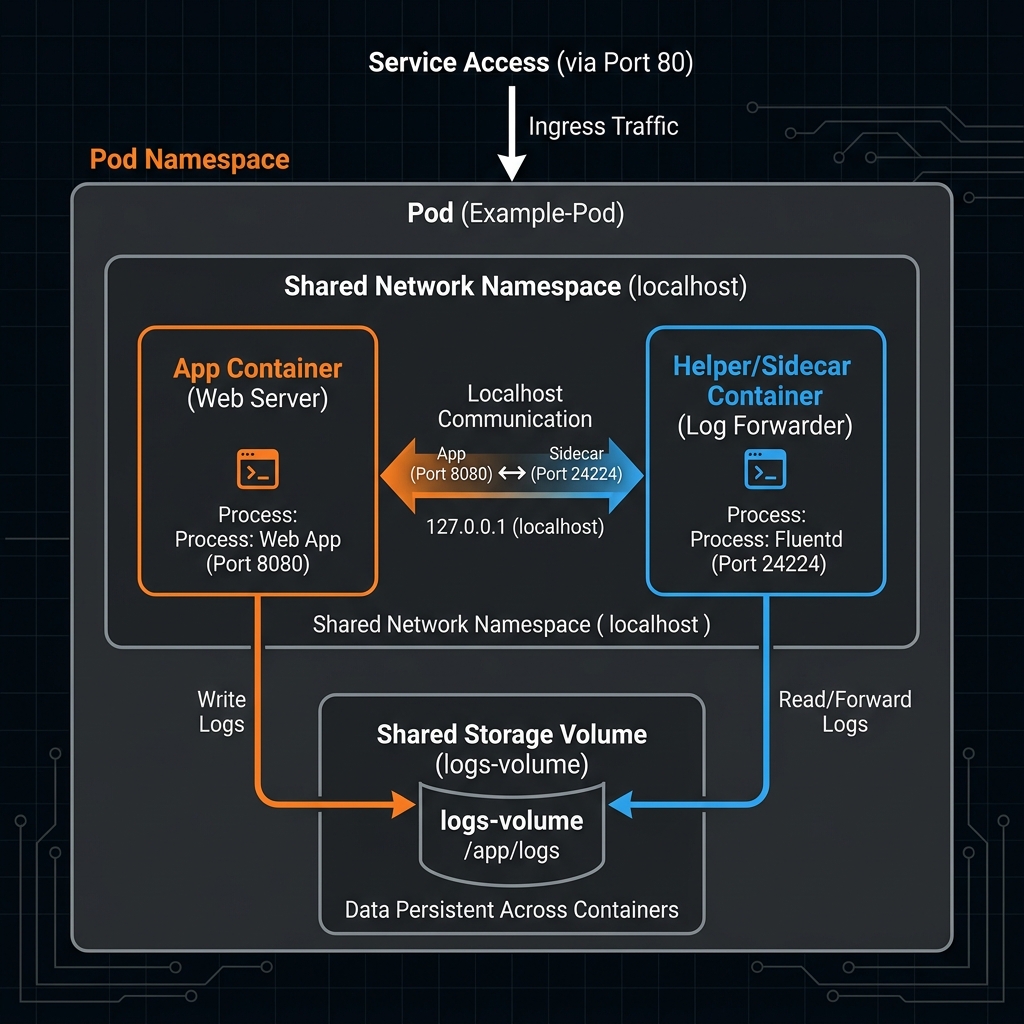
All containers inside a single Pod share the same network namespace, which means they share the same IP address and port space. A web container can communicate with a logging container by calling localhost. Because they share the network space, two containers in the same Pod cannot listen on the same port, or they will throw a port collision error.
They can also share storage volumes, allowing them to mount the same directories on the host. The orchestrator guarantees that all containers in a Pod are scheduled on the same host and share the same lifecycle.
Here is how containers share network and storage namespaces inside a single Pod:
You should only place multiple containers in a single Pod if they are tightly coupled. The primary patterns are:
* The Sidecar Pattern: A helper container that enhances the main container, such as a log collector or an Envoy proxy in a service mesh.
* The Adapter Pattern: A container that reformats outputs, such as converting custom application metrics into a Prometheus-readable format.
* The Init Container: A container that runs to completion before your main application containers start. Init containers execute sequentially. If an init container fails, Kubernetes restarts the Pod repeatedly until the init container succeeds.
Running a Multi-Container Pod
Let’s create a Pod that runs a web application container alongside a sidecar container. The sidecar writes content to a shared volume, and the web container reads and serves it. Save this configuration as multi-container-pod.yaml:
apiVersion: v1
kind: Pod
metadata:
  name: helper-pod
  labels:
    app: multi-container-demo
spec:
  volumes:
  - name: shared-data
    emptyDir: {}
  containers:
  - name: web-app
    image: nginx:latest
    ports:
    - containerPort: 80
    volumeMounts:
    - name: shared-data
      mountPath: /usr/share/nginx/html
  - name: content-generator
    image: alpine
    command: ["/bin/sh", "-c"]
    args:
    - |
      while true; do
        echo "Hello from the sidecar container at $(date)" > /data/index.html;
        sleep 5;
      done
    volumeMounts:
    - name: shared-data
      mountPath: /data
Deploy the pod to your cluster:
$ kubectl apply -f multi-container-pod.yaml
pod/helper-pod created
Check the pod status. The READY column shows 2/2, indicating that both containers are running inside the pod:
$ kubectl get pods
NAME         READY   STATUS    RESTARTS   AGE
helper-pod   2/2     Running   0          30s
You can view the application output locally by forwarding the container port to your workstation:
$ kubectl port-forward helper-pod 8080:80
Open a web browser and navigate to http://localhost:8080 to see the updates written by the sidecar container:
Hello from the sidecar container at Fri Jun 5 08:35:00 UTC 2026
If you need to view the logs of a specific container inside this multi-container configuration, you must supply the container name flag:
$ kubectl logs helper-pod -c content-generator
If you need to open an interactive terminal session inside the main web server container, specify it using:
$ kubectl exec -it helper-pod -c web-app -- /bin/bash
Using Pods allows you to group tightly coupled containers together, managing their storage, network, and lifecycles as a single unit.