The Downtime Risks of Manual Upgrades
Suppose you have a running ReplicaSet managing three instances of your application at version 1.0. Your development team releases version 2.0. If you only use a standard ReplicaSet, updating the application is a manual chore.
Simply updating the container image tag in the YAML file and applying it will not trigger an update to your active pods. You have to manually delete the old pods one by one so that the ReplicaSet controller launches replacements running version 2.0.
During this process, if you terminate all pods at once, your users will experience downtime. If the new version has a critical bug, rolling back requires you to manually reverse the process, exposing your production environment to prolonged instability.
Orchestrating Upgrades with Deployments
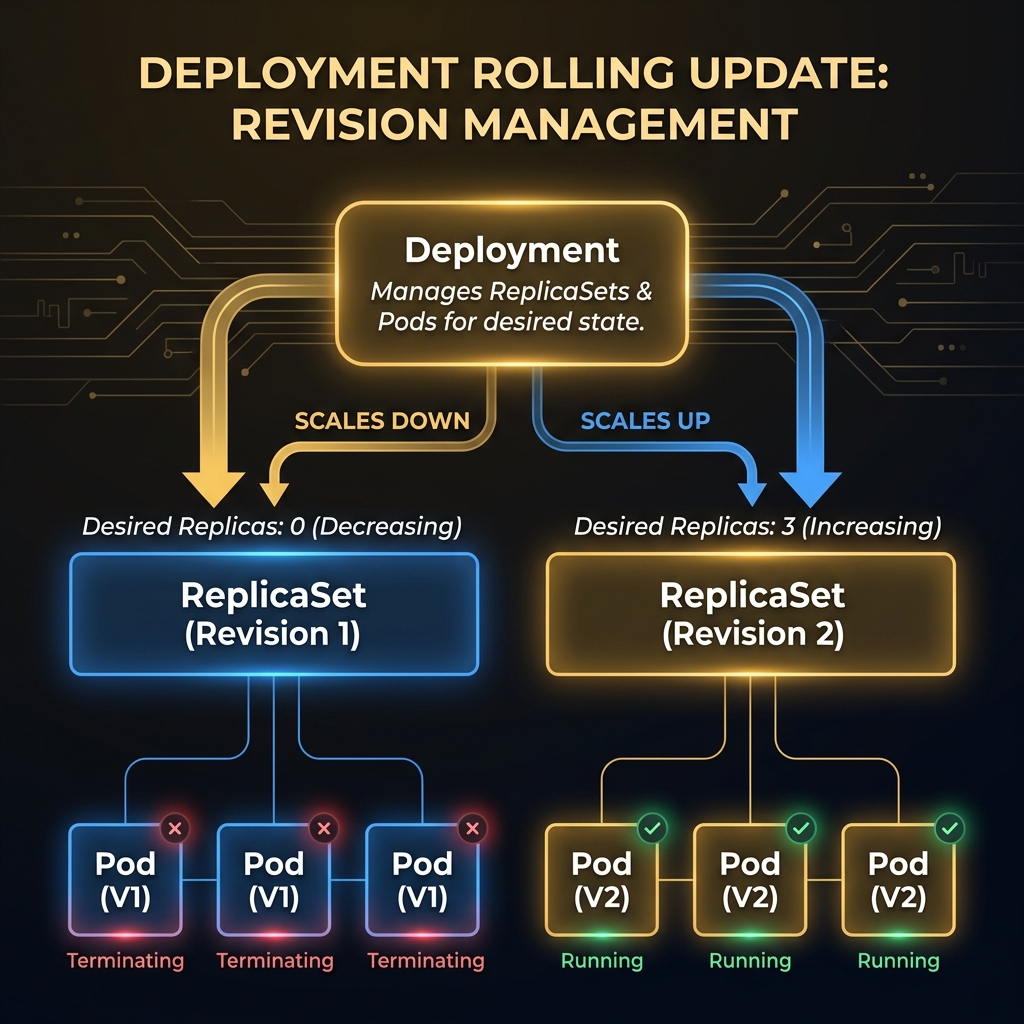
The Deployment controller resolves these manual upgrade challenges. It is a high-level manager that doesn’t control pods directly. Instead, a Deployment manages underlying ReplicaSets.
When you create a Deployment, it launches a ReplicaSet to run your pods. When you update the container image version in the Deployment specification, it creates a second ReplicaSet representing the new version. The Deployment then gradually scales up the new ReplicaSet while scaling down the old one, ensuring a smooth transition.
Here is the relationship between the Deployment, its ReplicaSets, and the active Pods:
Deployments support two primary upgrade strategies:
1. RollingUpdate: Gradually replaces pods to ensure zero downtime. You can configure this using two parameters:
* maxSurge: The maximum number of pods that can be scheduled above the desired replica count. Can be an absolute number (e.g., 1) or a percentage (e.g., 25%).
* maxUnavailable: The maximum number of pods that can be unavailable during the update process. Can be an absolute number or a percentage.
2. Recreate: Terminates all active pods before launching the new ones. This causes a brief outage but is useful when your application cannot run two versions concurrently due to database or API schema changes.
Let’s look at the math for a Deployment with 4 replicas using a maxSurge: 25% (which is 1 pod) and maxUnavailable: 25% (1 pod):
* During rollout, the Deployment can scale the new ReplicaSet up to 1 pod (1 surge), making a total of 5 pods active.
* Simultaneously, it can scale the old ReplicaSet down by 1 pod (1 unavailable), leaving 3 healthy old pods.
* As new pods transition to Ready status (passing readiness probes), old pods are terminated, keeping the total count between 3 and 5 at all times.
Managing a Deployment Rollout
Let’s define a Deployment and perform an upgrade. Save the following configuration as web-deployment.yaml:
apiVersion: apps/v1
kind: Deployment
metadata:
  name: my-web-deploy
spec:
  replicas: 4
  revisionHistoryLimit: 10  # Keeps up to 10 revisions in history
  selector:
    matchLabels:
      app: web-app
  strategy:
    type: RollingUpdate
    rollingUpdate:
      maxSurge: 1
      maxUnavailable: 1
  template:
    metadata:
      labels:
        app: web-app
    spec:
      containers:
      - name: web-container
        image: nginx:1.24  # Start with version 1.24
Create the deployment. Using the --record flag stores the execution command in the rollout history:
$ kubectl apply -f web-deployment.yaml --record
deployment.apps/my-web-deploy created
Check the rollout status:
$ kubectl rollout status deployment/my-web-deploy
deployment "my-web-deploy" successfully rolled out
To upgrade your containers to Nginx version 1.25, run:
$ kubectl set image deployment/my-web-deploy web-container=nginx:1.25 --record
deployment.apps/my-web-deploy image updated
If you need to make multiple modifications (like changing resources and image tag) and don’t want to trigger multiple intermediate rolling updates, you can pause the rollout, apply your changes, and then resume it:
# Pause the rollout
$ kubectl rollout pause deployment/my-web-deploy

# Make changes
$ kubectl set image deployment/my-web-deploy web-container=nginx:1.26
$ kubectl set resources deployment/my-web-deploy -c=web-container --limits=cpu=200m,memory=512Mi

# Resume the rollout to run a single rolling update
$ kubectl rollout resume deployment/my-web-deploy
You can view the rollout history to track revision numbers:
$ kubectl rollout history deployment/my-web-deploy
deployment.apps/my-web-deploy
REVISION  CHANGE-CAUSE
1         kubectl apply --filename=web-deployment.yaml --record=true
2         kubectl set image deployment/my-web-deploy web-container=nginx:1.25 --record=true
If you discover an issue with version 1.25 and need to roll back to the previous version, run the undo command:
$ kubectl rollout undo deployment/my-web-deploy --to-revision=1
deployment.apps/my-web-deploy rolled back
The Deployment controller automatically handles the rolling termination of the version 1.25 containers and launches replacements running version 1.24, protecting your users from downtime.