If Network Security Groups (NSGs) are the locks on individual office doors inside a company building, Azure Firewall is the heavily guarded armed security perimeter at the main gate.
It doesn’t just inspect whether a packet is TCP or UDP. It performs deep packet inspection, enforces Layer-7 URL filtering, cross-references traffic against global cyber-threat intelligence feeds, decrypts TLS streams in real-time, and runs signature-based Intrusion Detection and Prevention (IDPS).
Yet, despite being one of the central pillars of Azure security, Azure Firewall causes endless frustration because engineers don’t understand the strict, immutable mathematical order in which it processes rules.
They write an Application rule allowing *.github.com, but the packets get dropped because a Network rule denied Port 443 five milliseconds earlier.
To master enterprise perimeter security for the AZ-700, you have to memorize the Holy Order of Rule Processing, master the Premium SKU capabilities (TLS inspection and IDPS), and learn how to manage global policy inheritance using Azure Firewall Manager.
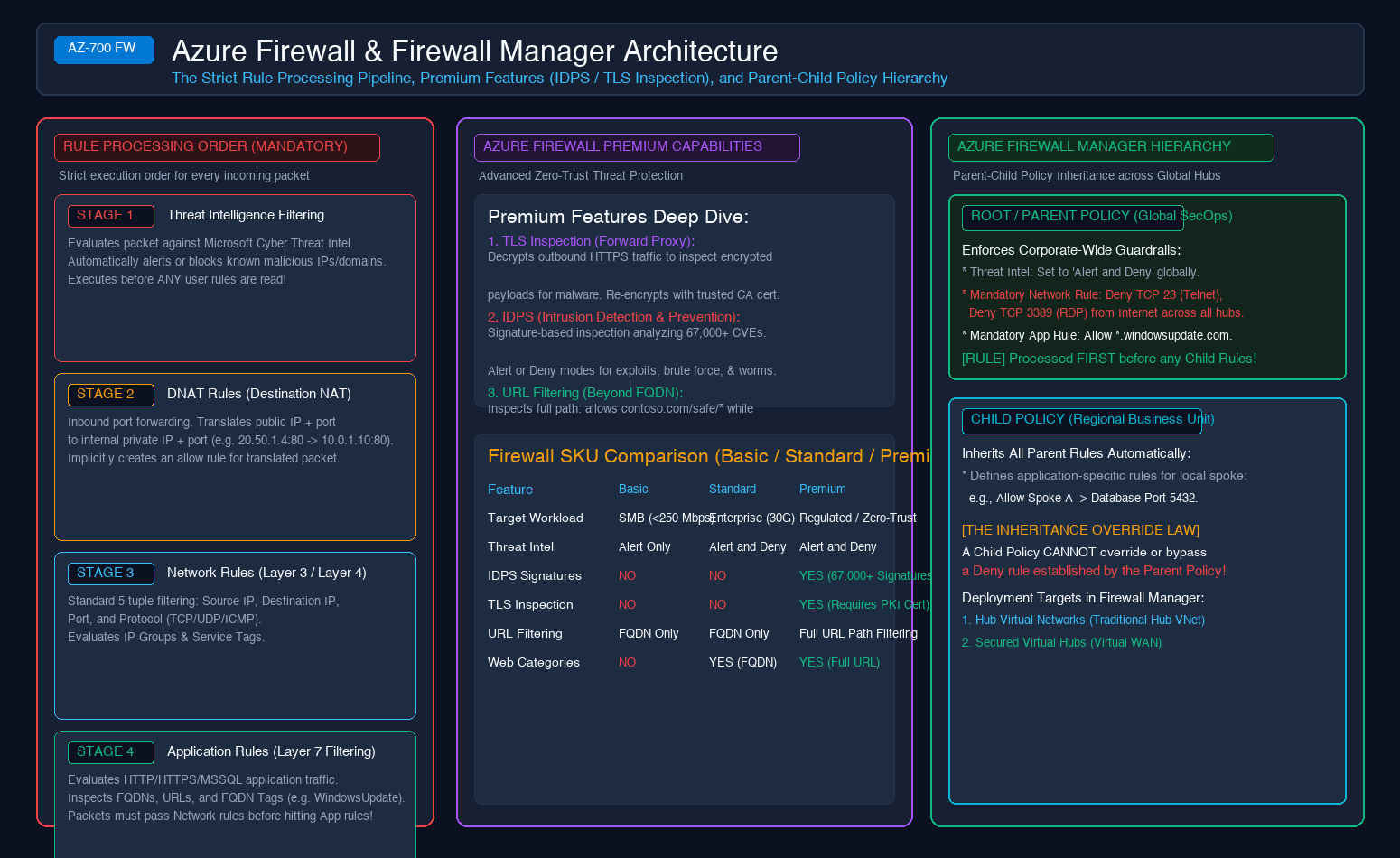
The Holy Order of Rule Processing
When a packet arrives at Azure Firewall, the inspection engine does not search through all your rules randomly. It follows a strict, four-stage pipeline:
$$\mathbf{Threat\;Intel} \;\;\longrightarrow\;\; \mathbf{DNAT\;Rules} \;\;\longrightarrow\;\; \mathbf{Network\;Rules} \;\;\longrightarrow\;\; \mathbf{Application\;Rules}$$
Let’s trace how a packet navigates this gauntlet:
Stage 1: Threat Intelligence Filtering (The First Line of Defense)
Before Azure Firewall reads a single custom rule you created, it compares the packet’s source and destination IP/domain against the Microsoft Cyber Threat Intelligence feed (powered by billions of signals analyzed daily by Microsoft Security).
* Modes: Can be set to Off, Alert, or Alert and Deny.
* Behavior: If a workload inside your VNet attempts to communicate with a known Command & Control (C2) botnet server or phishing host, Threat Intel drops the packet immediately.
Stage 2: Destination NAT (DNAT) Rules
DNAT rules are used for inbound internet traffic entering your network through the firewall’s public IP address.
* How it works: Translates the firewall’s Public IP and port to an internal workload private IP and port (e.g., 20.50.1.4:80 $\longrightarrow$ 10.0.1.10:80).
* The Implicit Allow (High Exam Yield): When you configure a DNAT rule, Azure Firewall automatically creates an implicit matching Network Allow rule to permit the translated packet to reach the backend VM. You do not need to create a secondary Network rule to allow the packet!
Stage 3: Network Rules (Layer 3 / Layer 4 Filtering)
Network rules are standard 5-tuple stateful packet filters:
* Parameters: Source IP/CIDR/IP Group, Protocol (TCP, UDP, ICMP, Any), Destination Port, Destination IP/CIDR/IP Group/Service Tag.
* Evaluation Logic: Rules are grouped into Rule Collection Groups with priorities (100 to 65,000). Lowest priority number evaluated first. Evaluation stops on the first match (Allow or Deny).
Stage 4: Application Rules (Layer 7 Filtering)
Application rules inspect web protocols: HTTP, HTTPS, and MSSQL.
* Parameters: Source IP/CIDR, Protocol:Port (HTTP:80, HTTPS:443), and Target FQDNs (e.g., *.microsoft.com, api.github.com).
* FQDN Tags: Pre-configured Microsoft tags that automatically bundle all required domains for Azure services (e.g., WindowsUpdate, AzureBackup, AppServiceEnvironment).
> Look at the execution order again: **Network Rules (Stage 3) execute BEFORE Application Rules (Stage 4).**
> If you have a Network rule with Action: `Deny` matching Port 443 to `*`, and an Application rule with Action: `Allow` matching Target FQDN: `*.github.com`:
> **All traffic to GitHub is dropped.**
> Why? Because the packet hit the Network rule at Stage 3, matched Port 443, was denied, and died. Stage 4 was never reached. If you want Application rules to handle web filtering, **do not create broad Network rules that catch Port 80 and 443**.
Azure Firewall SKUs: Basic vs. Standard vs. Premium
Picking the right SKU is critical for both compliance and cost:
1. Azure Firewall Basic
- Designed for: Small and Medium Businesses (SMBs) with low throughput (< 250 Mbps).
- Limitations: Threat Intel is Alert-only (cannot Deny); no IDPS; no TLS inspection; cannot scale to enterprise line rates.
2. Azure Firewall Standard
- Designed for: Enterprise general workloads.
- Features: Layer 3-7 filtering, Threat Intel Alert & Deny, FQDN filtering, Web Categories, scales up to 30 Gbps.
3. Azure Firewall Premium (The Zero-Trust Powerhouse)
The Premium SKU unlocks advanced next-generation security capabilities:
1. TLS Inspection (Forward Proxy Decryption)
- The Problem: Over 95% of modern internet traffic is encrypted with TLS. Standard firewalls only see the SNI domain name (
github.com); they cannot see the actual payload inside the encrypted HTTPS tunnel. - How TLS Inspection Works:
- The firewall intercepts outbound client HTTPS requests.
- The firewall decrypts the TLS packet, inspects the raw payload for malware, and scans it with the IDPS engine.
- The firewall re-encrypts the packet and sends it to the destination website.
- The Enterprise PKI Requirement (Exam Essential):
To perform TLS inspection without user browsers screaming security warnings, you must install an Enterprise Intermediate CA Certificate on the firewall (stored securely in Azure Key Vault and accessed via a Managed Identity). The client machines must trust the Root CA.
2. IDPS (Intrusion Detection and Prevention System)
- How it works: Signature-based deep packet inspection monitoring over 67,000 signatures across 50+ categories (analyzing CVE vulnerabilities, malware beacons, exploit kits, and SQL injection attempts).
- Modes: Set to Off, Alert, or Alert and Deny.
3. Full URL Path Filtering
Unlike Standard SKU (which can only filter by domain FQDN: contoso.com), Premium SKU can filter by the full URL path:
$$\text{Allow: } \mathbf{contoso.com/downloads/} \quad\mid\quad \text{Block: } \mathbf{contoso.com/admin/}$$
Azure Firewall Manager: Global Policy Governance
In an enterprise with ten regional Hub VNets and five Virtual WAN Secured Hubs, managing individual firewall rule sets on every box is an operational nightmare.
Azure Firewall Manager provides centralized security management through Azure Firewall Policies.
The Parent-Child Policy Hierarchy:
[Global Security Operations (SecOps)]
                  │
                  ▼
       [ROOT / PARENT POLICY]
       ├── Threat Intel: Alert & Deny
       ├── Deny TCP 23 (Telnet) & TCP 3389 (RDP) globally
       └── Allow *.windowsupdate.com
                  │
         ┌────────┴────────┐
         │ (Inheritance)   │
         ▼                 ▼
   [CHILD POLICY A]   [CHILD POLICY B]
   (East US Hub)      (West Europe Hub)
   - App-specific     - App-specific
     allow rules        allow rules
The Rules of Policy Inheritance (High Exam Yield):
- Parent Rules Process First: When a packet hits a firewall running a Child Policy, the Parent Policy rules are evaluated FIRST. If a match occurs in the parent policy, that action takes effect immediately.
- Child Rules Cannot Override Parent Deny: If the Parent Policy has a rule that denies Telnet (Port 23) globally, a Child Policy rule that says “Allow Telnet” is completely ignored. The parent deny wins every single time.
- Deployment Targets: Firewall Manager can govern policies across:
- Hub Virtual Networks: Traditional DIY hub-and-spoke VNets.
- Secured Virtual Hubs: Azure Virtual WAN hubs with integrated firewalls.
Real-World Solution Scenarios: Central Firewall Architecture & Policy Governance
Scenario 18.1: The Collapsed Application Rule (Network Rule Precedence Trap)
- The Problem: A cloud security architect defines an Azure Firewall Application Rule allowing workload VMs to reach outbound FQDN
*.github.comon HTTPS (port 443). To secure all other outbound ports, an operations engineer adds a Network Rule: Priority 200, Destination*, Port443, ActionDeny. Immediately, all developer VMs lose access togithub.com. The architect checks the Application Rule, sees it is set toAllow, and cannot understand whygithub.comis being rejected. - Underlay Mechanics & Failure Root Cause: Azure Firewall processes rules in a strict, unalterable hierarchy:
$$\mathbf{Threat\;Intelligence} \longrightarrow \mathbf{DNAT\;Rules} \longrightarrow \mathbf{Network\;Rules} \longrightarrow \mathbf{Application\;Rules}$$
Network rules are evaluated before Application rules. If a packet matches a Network Rule (whether Allow or Deny), processing terminates immediately. The packet never reaches the Application Rule engine! Because the Network Rule denied Port 443, the firewall dropped the initial TCP SYN packet before the TLS Client Hello containing the SNI domaingithub.comcould even be inspected. - The Architecture Solution:
- Remove Broad L4 Port Deny Rules: Never create Network rules that deny ports 80 or 443 if you intend to filter those ports via Layer-7 Application rules.
- Allow Traffic to Fall Through: If no Network rule matches port 80/443, the packet falls through to the Application Rule engine.
- Enforce Default Deny at the Tail: The Application Rule engine automatically enforces an implicit Deny on anything that does not match an allowed FQDN. Workloads reach
*.github.comwhile all other web traffic is blocked cleanly.
Scenario 18.2: Multi-Tenant Enterprise Governance (Firewall Manager Policy Hierarchy)
- The Problem: A global enterprise uses Azure Firewall Manager to govern firewall security across 20 subsidiary business units. Corporate InfoSec enforces a strict policy: outbound SSH (port 22) and Telnet (port 23) to the public internet are categorically forbidden. However, a developer team managing a subsidiary subscription creates a Child Policy with an Allow rule for port 22 to support an external SFTP partner. The developers claim their local policy should take precedence over the root policy.
- Underlay Mechanics & Failure Root Cause: Azure Firewall Manager implements a strict parent-child policy inheritance model. When a firewall evaluates traffic governed by a hierarchical policy:
$$\mathbf{Parent\;Rule\;Collection\;Groups} \longrightarrow \mathbf{Child\;Rule\;Collection\;Groups}$$
Rules defined in the Parent (Root) policy are evaluated first. If a Parent policy contains aDenyrule matching the traffic, the packet is dropped immediately. Child policies cannot override, bypass, or re-order parent rules. - The Architecture Solution:
- Enforce Baseline via Parent Policy: Maintain the global Deny rule for Port 22/23 in the Root Parent Policy attached to all corporate firewalls.
- Exception Management via Specific Whitelisting: If an exception is required for a legitimate external SFTP partner, the exception must be granted in the Parent Policy (e.g. by creating an explicit Allow rule with Priority 100 matching only the partner’s specific Public IP CIDR), or by managing the exception through dedicated Private Link connectivity rather than opening public internet egress.
Scenario 18.3: Decrypting Malicious Payloads (Outbound TLS Inspection & Private PKI)
- The Problem: Enterprise security mandates Intrusion Detection and Prevention (IDPS) inspection on all outbound internet traffic from production VMs to detect command-and-control (C2) beaconing and data exfiltration. However, because 99% of web traffic is encrypted via HTTPS (TLS), standard IDPS signatures only see encrypted ciphertext. An infected VM successfully downloads a Cobalt Strike beacon over an encrypted HTTPS connection without triggering an alert.
- Underlay Mechanics & Failure Root Cause: Standard packet inspection cannot read inside the encrypted TLS tunnel. Without terminating and decrypting TLS, IDPS can only inspect packet headers (IP and port) and the plaintext SNI domain name during the initial handshake, leaving the payload completely invisible.
- The Architecture Solution:
- Upgrade to Azure Firewall Premium: Deploy Azure Firewall Premium SKU, which supports full TLS Inspection.
- Integrate Intermediate CA Certificate: Generate an Intermediate CA certificate from the enterprise PKI (Active Directory Certificate Services) and upload it to an Azure Key Vault with managed identity access granted to the firewall.
- Enable TLS Inspection in Firewall Policy: In the Application Rule Collection, enable TLS Inspection on the target rule collections.
- Underlay Man-in-the-Middle Termination: When a VM initiates an HTTPS connection, Azure Firewall terminates the client TLS session, generates a certificate on the fly signed by the enterprise CA (trusted by the VM OS), decrypts the HTTP payload, runs full IDPS signature matching, re-encrypts the session, and sends it to the destination server. Malicious payloads are detected and blocked inside encrypted streams.
Hands-On Azure CLI: Azure Firewall Premium & Policy Governance
Deploy a parent-child firewall policy hierarchy with FQDN application rules and provision Azure Firewall Premium.
1. Create Parent Policy with Threat Intelligence Enabled
az network firewall policy create \
  --resource-group rg-az700-networking \
  --name fwp-global-parent \
  --sku Premium \
  --threat-intel-mode AlertAndDeny
2. Create Regional Child Policy Inheriting from Parent
az network firewall policy create \
  --resource-group rg-az700-networking \
  --name fwp-eastus-child \
  --sku Premium \
  --base-policy fwp-global-parent
3. Add Rule Collection Group & Application Rules
az network firewall policy rule-collection-group create \
  --resource-group rg-az700-networking \
  --policy-name fwp-eastus-child \
  --name rcg-application-tier \
  --priority 500

az network firewall policy rule-collection-group collection add-filter-collection \
  --resource-group rg-az700-networking \
  --policy-name fwp-eastus-child \
  --rcg-name rcg-application-tier \
  --name coll-allowed-domains \
  --collection-priority 100 \
  --action Allow \
  --rule-type ApplicationRule \
  --rule-name Allow-Microsoft-Updates \
  --source-addresses 10.0.0.0/8 \
  --protocols Https=443 \
  --target-fqdns "*.microsoft.com" "*.windowsupdate.com" "*.github.com"
4. Deploy Azure Firewall Premium
az network public-ip create -g rg-az700-networking -n pip-firewall --sku Standard --allocation-method Static

az network firewall create \
  --resource-group rg-az700-networking \
  --name afw-hub-eastus \
  --vnet-name vnet-hub-eastus \
  --public-ip pip-firewall \
  --sku AZFW_VNet \
  --tier Premium \
  --firewall-policy fwp-eastus-child
The GIST: Important Summary & Key Points
Here is your AZ-700 master checklist for Azure Firewall:
1. The Holy Processing Order: Threat Intel $\longrightarrow$ DNAT Rules $\longrightarrow$ Network Rules $\longrightarrow$ Application Rules.
2. Network Rules beat Application Rules: Never create broad Port 80/443 Network rules if you intend to filter traffic by domain using Application rules.
3. DNAT automatically generates an implicit allow rule: No secondary Network rule required for port forwarding.
4. Premium SKU Unlocks IDPS and TLS Inspection: TLS inspection requires an Enterprise Intermediate CA stored in Azure Key Vault.
5. Firewall Manager Parent-Child Policies: Parent rules process first; Child rules cannot bypass a parent Deny.
6. Subnet Sizing: Mandatory AzureFirewallSubnet (minimum /26); Forced Tunneling requires AzureFirewallManagementSubnet (/26).