If you’ve got Git installed & running, welcome to the club. Now I am going to set up my first local Git repository. Let us understand how Git actually manages your files in the backend, & look at the day-to-day commands we’ll be using basically all the time. It has to be noted that you should pay close attention to the terminal outputs here. Reading what the terminal tells you is the best way to understand what’s actually happening to your files.
The “Three Trees” Concept
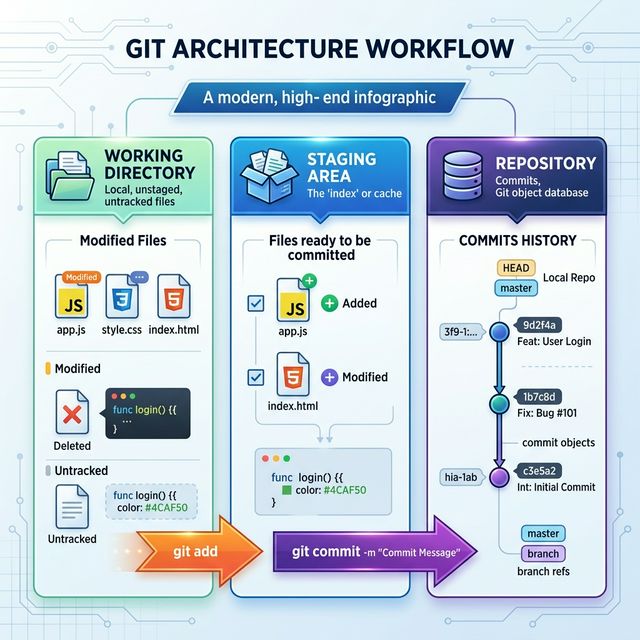
Before we start typing commands, there’s a core concept you need to know. A lot of folks think version control is just hitting ‘Save’. Git doesn’t work like that. It moves your files through a very specific three-stage pipeline, which we usually call the “Three Trees”.
- Working Directory: This is just your normal folder. It’s what you see in File Explorer. If you create a
script.pyfile, it sits here. Git knows it’s there but it is not tracking it yet. - Staging Area (or Index): Suppose you finish editing
script.py&database.css, but you only want to save the changes for the python file right now. You “stage” it. The staging area is basically a waiting room where you keep files that you definitely want to include in your next snapshot. - Repository (Commit): Once your staging area has exactly what you want, you take the snapshot, or “commit”. The files are now officially saved in the hidden repository database.
Setting things up: git init
Now, let us actually try this out. I am going to create a completely empty folder on my Desktop. I am going to open my terminal & go into that folder. To tell Git to start managing this folder, let us run:
git init
Output:
Initialized empty Git repository in C:/Users/kapil/OneDrive/Desktop/GIT/MyDemoProject/.git/
What just happened? Git quietly created a hidden folder called .git. That hidden folder is your actual repository. Your regular directory is now a Git workspace. Just completely ignore the .git folder—if you delete it, you lose all your project history.
Always check the status: git status
If there’s one command we will use constantly, it’s git status. Any time you have a doubt about what’s going on with your files, just run it. Let us say I create a new file named server.py. Now, I am going to check the status.
git status
Output:
On branch main

No commits yet

Untracked files:
  (use "git add <file>..." to include in what will be committed)
        server.py

nothing added to commit but untracked files present (use "git add" to track)
Look at the output. Git is basically saying, “I can see server.py sitting in the folder, but it is untracked.” It’s just ignoring it for now.
Moving to the waiting room: git add
To tell Git that we want to track this file & get it ready for our snapshot, I am going to move it to the Staging Area using the git add command.
git add server.py
%% If it succeeds, it just returns to the prompt without any output %%

git status
Output:
On branch main

No commits yet

Changes to be committed:
  (use "git rm --cached <file>..." to unstage)
        new file:   server.py
The output usually turns green here. The file has moved from “Untracked” to “Changes to be committed”. It’s sitting perfectly in the staging area now.
taking the snapshot: git commit
Now that server.py is safely staged, it’s time to lock it in. A commit permanently records whatever is in the staging area. You always have to give a message so your future self (or your team) knows what you actually did. Let me run a commit.
git commit -m "Added the base server script"
Output:
[main (root-commit) 8f5b4a9] Added the base server script
 1 file changed, 10 insertions(+)
 create mode 100644 server.py
See that random string 8f5b4a9? That’s the unique ID (or hash) for your commit. Your file is now securely stored in the repository history.
Ignoring files: .gitignore
It has to be noted that not every file needs to be tracked. Things like temporary logs, cached files, or heavy environment folders (like node_modules or a python venv) should never be pushed to Git. To handle this, we create a simple text file & name it .gitignore. Inside, we just list down the names or patterns of files we want Git to completely ignore.
Example .gitignore file:
# Ignore python cache folders
__pycache__/

# Ignore any log files
*.log

# Ignore a file with passwords
db_password.txt
If I create an error.log file now & run git status, it won’t even show up. It’s completely invisible to Git. So basically, the day-to-day workflow looks like this: You modify a file, you check git status, you stage it with git add fname & then you lock it in with git commit -m "your message". That’s essentially 90% of what you’ll be doing.