Up to now, our Git workflow has been a straight single line. You make a change, you commit it, & the history moves forward. That works perfectly if you’re the only person working & you never make a mistake or need to experiment. But what happens when you want to try out something risky—like completely changing the database engine—without breaking your current, working code? If you just keep committing to the main branch, you are playing with fire. That’s exactly why we have Branches. A branch is basically an alternate timeline. Today, let us look at how to jump between these timelines, merge them back together when things work out, & fix things when Git screams “CONFLICT”.
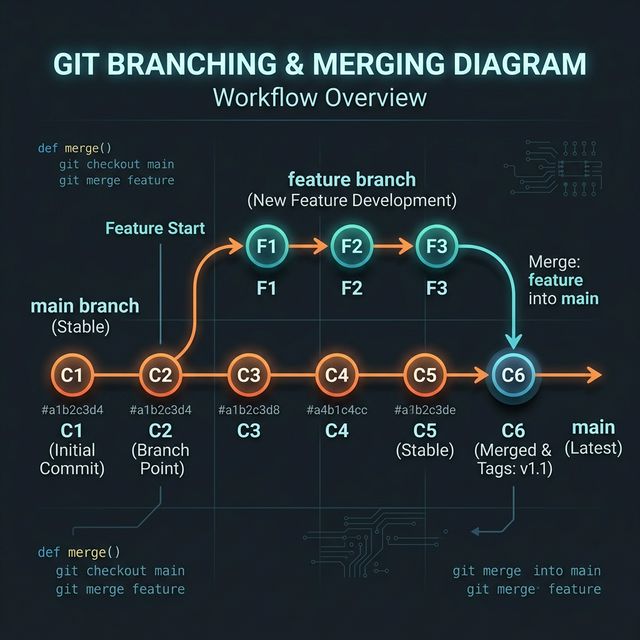
The lifecycle of a Branch
By default, every new Git repo starts with one single branch, generally called main (or master in older setups).
1. Checking your branches: To see which timeline you’re currently on, I am going to list the active branches:
git branch
Output:
* main
That little asterisk * basically tells you that this is your current active branch.
2. Creating a new branch: Suppose we want to test a new database feature. Let us create a branch & call it feature-db.
git branch feature-db
If I run git branch again, you’ll see it listed. But wait, you are not on it yet. Your HEAD pointer is still sitting on main.
3. Switching to the branch: To actually move your working folder into this new feature-db timeline, I am going to use either the checkout or the switch command.
git switch feature-db
Output:
Switched to branch 'feature-db'
Now, any commits you make will only affect this specific branch. The main branch stays completely stable & unaware of whatever mess you make here. It has to be noted, you can create & switch to a branch in one go by simply typing git switch -c feature-db.
4. Deleting a branch: If your experiment fails completely, or you just don’t need it anymore, you can just delete it. But keep in mind, you can’t delete a branch while you’re still standing on it.
git switch main
git branch -d feature-db
Merging branches together
Let us say your database experiment worked perfectly. You have the commits sitting on feature-db. Now, you want those changes brought safely into main. This is called a Merge. There’s one strict rule you must always follow for merging: Always stand on the branch that is receiving the changes. Since we want to bring the new code into main, I am going to switch to main first:
git switch main
Then we simply pull the feature branch into it:
git merge feature-db
Output:
Updating 8f5b4a9..a4c9b2f
Fast-forward
 database.py | 12 ++++++++++++
 1 file changed, 12 insertions(+)
Git sees that main didn’t have any conflicting changes, so it just fast-forwards the timeline. It’s automatic & very smooth.
Handling Merge Conflicts
A fast-forward merge is super easy. But what if you changed Line 10 of database.py on the main branch, & someone else changed the exact same Line 10 on the feature-db branch? When you type git merge, Git basically throws an error.
Output:
Auto-merging database.py
CONFLICT (content): Merge conflict in database.py
Automatic merge failed; fix conflicts and then commit the result.
When people see this red text, they panic. Don’t. What happens is, Git is just a tool & it doesn’t know which line is the correct one. It wants you to decide. If you open that database.py file in your editor, you’ll see this weird block of text:
def configure_db():
<<<<<<< HEAD
    url = "localhost:5432"
=======
    url = "production.aws.com:5432"
>>>>>>> feature-db
    connect(url)
How to fix it: It’s very straightforward. Just delete the ugly Git markers (<<<<<<<, =======, >>>>>>>) & keep the lines of code you actually want. For instance, if production is the right URL, configure the file to look like this:
def configure_db():
    url = "production.aws.com:5432"
    connect(url)
Save the file. Then, to tell Git that you’ve fixed the conflict, I am going to run:
git add database.py
git commit -m "Fixed merge conflict by choosing the production URL"
So at the end of the day, branching gives you a safety net. You can create a branch, write whatever code you want locally, & merge it back only when you are 100% sure it works.