Up until now, every commit, branch, & revert we’ve done has stayed entirely inside your local laptop. See, if your hard drive crashes right now, your entire project history goes with it. The problem here is that we can’t just rely on local storage. If we want to secure our code, we need a secondary, off-site location for our repository. We need a Remote. While there are options like GitLab or Bitbucket, GitHub is basically the industry standard. Now, let us see how to link your local Git setup to GitHub.
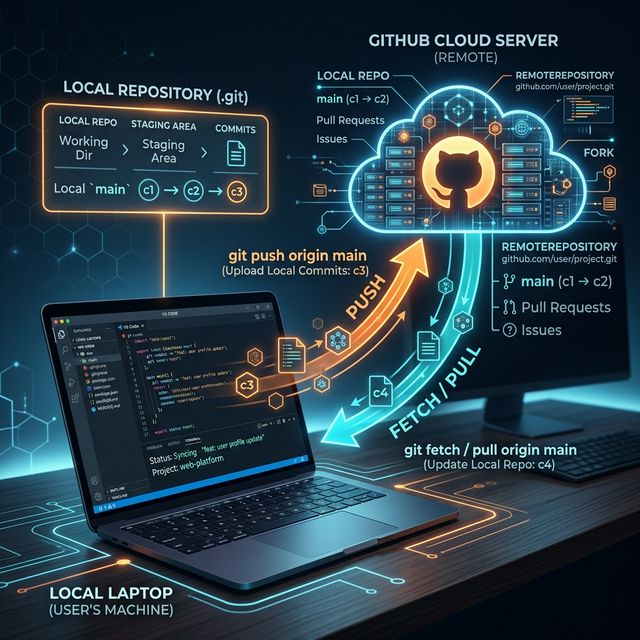
Setting up a Remote
In Git, a “remote” is really just a URL. That’s all. It’s simply a web address pointing to a Git repo hosted on the internet or on a corporate server. When you create a blank repository on GitHub.com, it gives you a URL (for example, https://github.com/ethernetdude/my-demo-project.git). To link your local Git folder to this GitHub URL, I am going to run the git remote add command. By standard convention, the main remote is usually called origin.
git remote add origin https://github.com/ethernetdude/my-demo-project.git
Now let us verify that it got added properly by listing your remotes:
git remote -v
Output:
origin  https://github.com/ethernetdude/my-demo-project.git (fetch)
origin  https://github.com/ethernetdude/my-demo-project.git (push)
Now your local Git knows exactly where the cloud repo lives.
Pushing Code up: git push
Right now, your local repo has all the commits, but GitHub is completely empty. To push your snapshots up to the cloud, I am going to simply use git push. The very first time you push a local branch, you have to establish a link. You’re basically telling Git, “Push my local main branch to the origin remote, & remember this connection.”
git push -u origin main
Output:
Enumerating objects: 12, done.
Counting objects: 100% (12/12), done.
Writing objects: 100% (12/12), 1.2 KiB | 1.20 MiB/s, done.
Total 12 (delta 3), reused 0 (delta 0)
To https://github.com/ethernetdude/my-demo-project.git
 * [new branch]      main -> main
Branch 'main' set up to track remote branch 'main' from 'origin'.
Because of that -u flag, the next time you want to push updates, you can literally just type:
git push
No need to type out the branch name every time.
Getting Code down: git fetch vs git pull
If you work from multiple laptops, or share a repository with a teammate, eventually GitHub will have new commits that aren’t on your local machine. You’ll need to download them. There are two commands for this, & it confuses a lot of folks.
1. The safe check (git fetch) When you run git fetch, Git asks GitHub for all the new commits, but it deliberately doesn’t touch your local working files. It just updates its background database & you can then review the changes before deciding to merge them.
git fetch origin
2. The direct download (git pull) Normally, git pull is what you’ll use most of the time. Think of it as a combo command. It basically does a git fetch & then immediately runs a git merge. It forcefully pulls down the new commits & merges them right into whatever branch you currently have open.
git pull origin main
Output:
Updating a4c9b2f..9d4e5f2
Fast-forward
 config.yml | 3 ++-
 1 file changed, 2 insertions(+), 1 deletion(-)
What usually happens on a team is, you come into work on Monday, & before you start writing any new code or changing files, you just do a git pull. This brings in whatever changes the rest of the team pushed over the weekend, keeping your local workspace perfectly synced.