So, you’ve been working away, adding files, & committing them locally. Everything is going great. But inevitably, things go wrong. You log in one morning, look at the script you updated late last night, & realize it completely broke the application. The service won’t start, & the syntax is all messy. Basically, you need a quick way out. In the old days, you’d be furiously pressing CTRL+Z hoping your editor remembers the changes. But with Git, you don’t need to panic. You have a proper history tracker. Now, let us look at how to check what you did, park changes temporarily, & safely undo mistakes without losing your mind.
Checking history: git log
To see what commits have been made so far, I am going to use git log. This command just prints out a list of all your past snapshots.
git log
Output:
commit a4c9b2f671e23f98abcd1234567890abcdef1234 (HEAD -> main)
Author: Kapil Kanth <[email protected]>
Date:   Tue Apr 6 02:14:22 2026 +0530

    Added experimental firewall rules (probably broken)

commit 8f5b4a9234510abf4591ebd391a293b12395bd92
Author: Kapil Kanth <[email protected]>
Date:   Mon Apr 5 14:00:00 2026 +0530

    Added the base server script
Every commit gets a massive unique ID (like a4c9b2f...). You don’t need to memorize the whole thing; just the first 7 characters are enough. If you spot that (HEAD -> main) part, HEAD is basically Git’s way of saying “You Are Here.” It shows which exact commit your files are currently synced to.
Seeing line-by-line changes: git diff
If you modified a file but haven’t staged it yet, & you want to double-check exactly what lines you changed, let us use git diff.
git diff server.py
Output:
diff --git a/server.py b/server.py
index e69de29..4e2f9d1 100644
--- a/server.py
+++ b/server.py
@@ -1,3 +1,4 @@
  def start_server():
-    print("Starting on port 80")
+    print("Starting on port 8080")
+    enable_ssl()
It tells you straight away: the red lines (with -) were removed, & the green lines (with +) were added.
Parking your work: git stash
Suppose you are in the middle of a messy update in server.py, but someone asks you to quickly fix a typo in another file right now. You aren’t ready to commit your incomplete work, but you need the workspace to be clean. That’s where git stash comes in. It’s basically a temporary clipboard.
%% Save incomplete work to clipboard %%
git stash
Output:
Saved working directory and index state WIP on main: a4c9b2f Added experimental firewall rules
Your files instantly revert to the last clean commit state & your messy work is safely parked in the background. Now I can easily fix the typo, commit that fix, & when I’m ready to resume my messy work, I just bring it back:
%% Bring back the parked work %%
git stash pop
Safely undoing a commit: git revert
Now let us look back at our git log. That commit we made at 2 AM (a4c9b2f) broke the firewall rules. We need to undo it. If you are working in a team or on a shared project, the safest way to undo a mistake is git revert. It doesn’t delete history & instead, it looks at the changes from the bad commit, creates the exact opposite changes, & saves that as a brand new commit.
%% Just provide the first few characters of the bad commit %%
git revert a4c9b2f
Output:
[main 7b1c3d4] Revert "Added experimental firewall rules (probably broken)"
 1 file changed, 10 deletions(-)
If your bad commit added 10 lines, this revert commit deletes those exact 10 lines. So your history now shows three commits: the initial one, the mistake, & the fix. This keeps the timeline clean & prevents version conflicts with your team.
Ripping out a commit entirely: git reset
If you are working perfectly alone on your local setup & just want to completely erase a terrible commit as if it never happened, you use git reset.
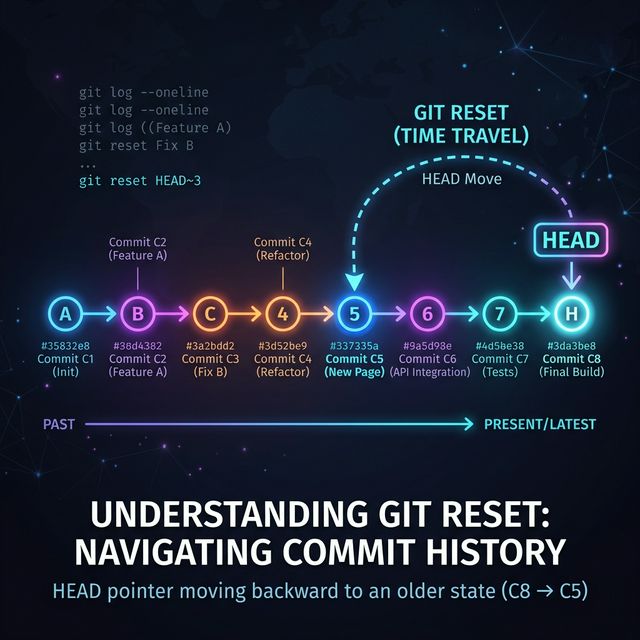
There are two main ways to use reset. Suppose we want to completely drop commit a4c9b2f & go back to 8f5b4a9. Let me show you how.
1. Soft Reset
git reset --soft 8f5b4a9
This removes the bad commit from the history, but keeps your actual files as they are. Your uncommitted changes are just pushed back into the Staging Area. It’s useful if you realize you just messed up the commit message & want to redo it.
2. Hard Reset (Careful with this)
git reset --hard 8f5b4a9
Output:
HEAD is now at 8f5b4a9 Added the base server script
This is the nuclear option. It deletes the commit from history AND forcefully overwrites your files to match the old commit. It has to be noted that any uncommitted code you had written will be completely wiped out. There is no CTRL+Z for a hard reset, so make double sure before executing this. So fundamentally, if you mess up a file, you just find a good commit from git log & either revert it safely or reset it perfectly. It’s a lifesaver when you’re deploying configurations or code.