If 2020 taught network engineers anything, it’s that relying on physical on-premises concentrators for remote access is an operational disaster. When thousands of engineers went remote overnight, physical VPN appliances melted down under CPU load, and corporate internet pipes saturated because all remote traffic was hair-pinned through regional datacenters just to reach cloud services.
Azure Point-to-Site (P2S) VPN moves remote user termination directly into Microsoft’s global cloud edge.
Instead of backhauling a developer in Tokyo through your Chicago headquarters just so they can query an Azure SQL database, they connect straight into the Azure Virtual Network Gateway over the closest Microsoft edge point of presence.
To design an enterprise-grade P2S architecture for AZ-700, you have to understand the protocol trade-offs (OpenVPN vs. IKEv2 vs. SSTP), how to integrate Microsoft Entra ID Conditional Access, and how to push custom routing tables so remote workers don’t get trapped in a local VNet silo.
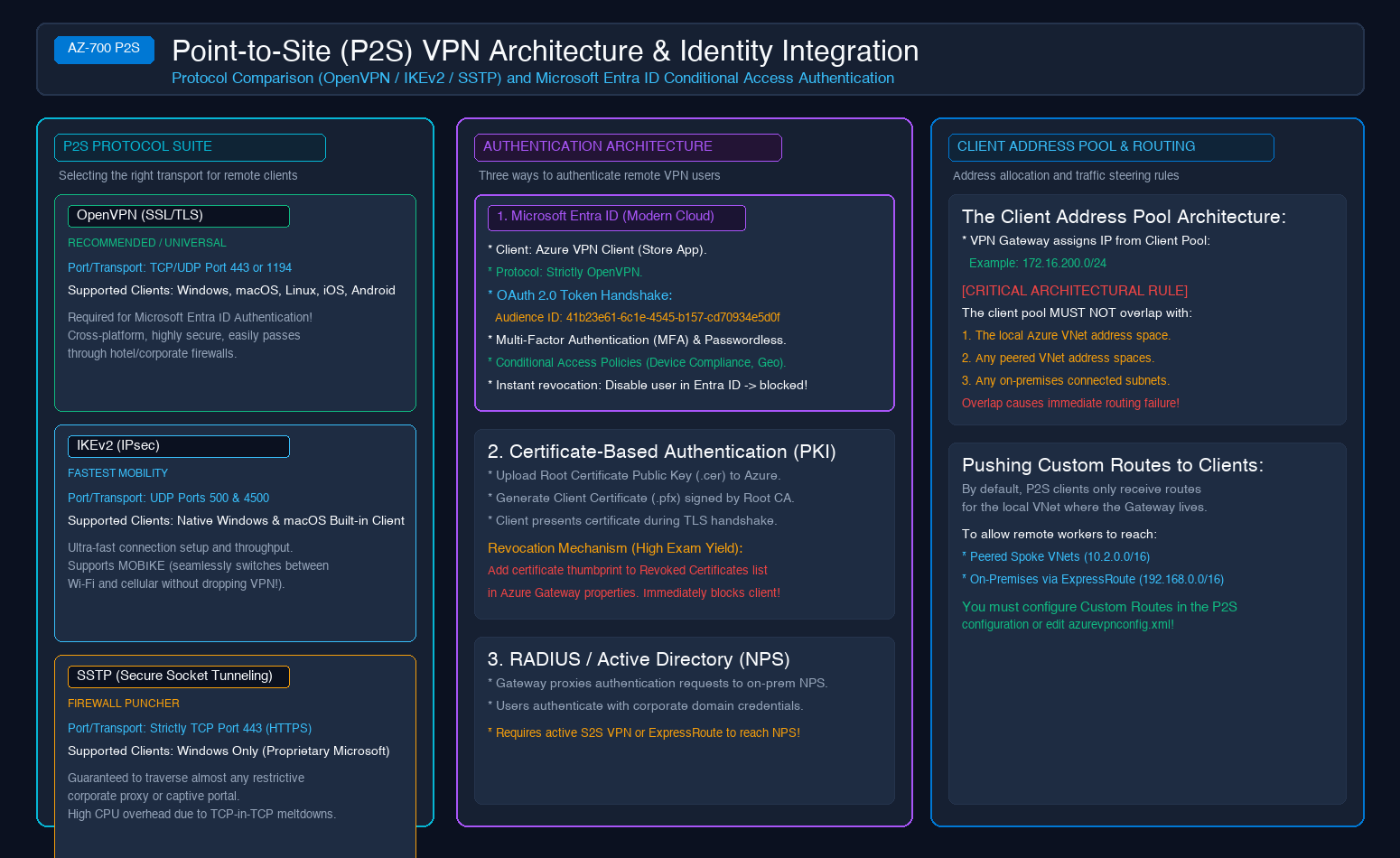
The Protocol Shootout: OpenVPN vs. IKEv2 vs. SSTP
When you configure Point-to-Site VPN on an Azure Gateway, you have to select the tunnel protocol. Each protocol was built for a different era, and picking the wrong one will cause endless helpdesk tickets from traveling executives.
1. OpenVPN (The Modern Cloud Standard)
- Under the Hood: SSL/TLS-based tunneling running over standard TCP/UDP port 443 or 1194.
- The Killer Advantage: OpenVPN is the ONLY protocol that supports Microsoft Entra ID Authentication. If you want modern identity features (MFA, passwordless, Conditional Access), you must choose OpenVPN.
- Compatibility: Cross-platform. Works on Windows, macOS, Linux, iOS, and Android via the official Azure VPN Client.
- Firewall Traversal: Because it can run over TCP 443, it effortlessly bypasses restrictive airport, hotel, and guest Wi-Fi networks that block IPsec ports.
2. IKEv2 (The High-Speed Mobile Protocol)
- Under the Hood: Standard IPsec tunnel running over UDP port 500 and UDP port 4500 (NAT-Traversal).
- The Killer Advantage: MOBIKE (IKEv2 Mobility and Multihoming Protocol). If an engineer is connected to VPN on their laptop and walks out of their house, their laptop seamlessly transitions from home Wi-Fi to a 5G mobile hotspot without dropping the VPN tunnel or breaking active SSH sessions.
- The Downside: Highly restrictive corporate firewalls and hotel captive portals frequently block UDP 500 and 4500. It does not support native Entra ID authentication (requires certificates or RADIUS).
3. SSTP (Secure Socket Tunneling Protocol – The Firewall Puncher)
- Under the Hood: Encapsulates PPP traffic inside an encrypted HTTPS session over strictly TCP Port 443.
- The Advantage: It will penetrate almost any firewall or proxy on the planet. If an outbound HTTPS connection to a website works, SSTP works.
- The Fatal Flaw: Windows-Only. You cannot use SSTP on macOS, Linux, iOS, or Android. Furthermore, SSTP suffers from the infamous TCP-in-TCP meltdown: if the outer TCP connection drops a packet, the inner TCP stack retransmits, causing compounding latency and throughput collapse on lossy connections.
The Three Authentication Architectures
AZ-700 heavily tests the identity mechanics used to grant access to remote users.
1. Microsoft Entra ID Authentication (The Zero-Trust Choice)
This is the gold standard for enterprise Azure deployments:
* Client App: Remote workers install the Azure VPN Client from the Microsoft Store or macOS App Store.
* The Handshake: When the user clicks “Connect”, the Azure VPN Client initiates an OAuth 2.0 browser handshake with Microsoft Entra ID.
* The Enterprise App ID (Exam Essential): To configure Entra ID authentication on the gateway, you must input the well-known Microsoft Azure VPN enterprise application client ID:
$$\mathbf{Audience\;ID:}\;\; \text{41b23e61-6c1e-4545-b157-cd70934e5d0f}$$
* Conditional Access Enforcement: Because the handshake hits Entra ID, you can enforce corporate security policies:
* Require Multi-Factor Authentication (MFA) via Microsoft Authenticator.
* Require the laptop to be Intune-managed and compliant.
* Block logins originating from non-approved geographic regions.
* Instant Offboarding: If an employee is terminated, disabling their account in Entra ID instantly revokes their VPN access.
2. Certificate-Based Authentication (The PKI Approach)
- How it works:
- You generate a Public/Private key pair (Enterprise PKI or self-signed).
- You export the Root Certificate Public Key (
.cer) as a Base64-encoded string and upload it into the Azure VPN Gateway configuration. - You issue Client Certificates (
.pfx) signed by that Root CA and install them in the personal certificate store of each user’s laptop. - When the client initiates a connection, the gateway validates that the client cert chains up to the trusted Root CA.
- The Revocation Trap (AZ-700 High-Yield):
How do you immediately revoke access for a compromised laptop without invalidating the Root Certificate for all 5,000 employees?
Answer: You extract the client certificate’s thumbprint and add it to the Revoked Certificates list in the Azure VPN Gateway properties. Azure checks this blacklist during the TLS handshake and terminates the connection immediately.
3. RADIUS / Active Directory Domain Services
- How it works: The Azure VPN Gateway acts as a RADIUS client, proxying authentication requests across an active Site-to-Site VPN or ExpressRoute to an on-premises Network Policy Server (NPS) or Cisco ISE cluster.
- Use Case: Organizations that have not yet migrated their identity to Entra ID and want remote users to authenticate using legacy Active Directory credentials.
Client Address Pools & The Overlap Rule
Every Point-to-Site configuration requires a Client Address Pool:
* Example: 172.16.200.0/24 (provides 256 IP addresses).
* When a remote client establishes a tunnel, the Azure VPN Gateway dynamically assigns an IP from this pool to the client’s virtual tunnel interface.
The Absolute Rule of Client Pools
The Client Address Pool must never overlap with:
1. The local Azure VNet address space.
2. Any peered VNet address spaces.
3. Any on-premises connected corporate subnets.
4. The client’s local home network subnet (e.g., if a user’s home Wi-Fi router uses 192.168.1.0/24, never use 192.168.1.0/24 for your Azure client pool).
If an overlap exists, routing becomes non-deterministic and the operating system drops the packets.
Remote Client Routing: Beyond the Hub VNet
By default, when a remote worker connects via P2S VPN, the Azure gateway only pushes a route for the local Virtual Network where the gateway lives.
Imagine this enterprise architecture:
* Gateway lives in Hub VNet: 10.0.0.0/16
* Workload VMs live in Spoke VNet: 10.2.0.0/16 (Peered to Hub)
* On-premises database lives at: 192.168.10.50 (Connected via ExpressRoute)
A developer connects to P2S VPN. They can ping VMs in the Hub VNet (10.0.0.0/16). But when they try to reach the Spoke VNet (10.2.0.0/16) or on-premises (192.168.10.50), it fails completely.
Why? Because the client’s local operating system route table has no route for 10.2.0.0/16 or 192.168.0.0/16 pointing into the VPN tunnel interface!
The Fix: Custom Routes & Profile Configuration
To steer traffic to peered spokes and on-premises over P2S:
1. Azure Gateway Custom Routes: In the Point-to-Site configuration in the Azure Portal or CLI, you add Custom Route Prefixes: e.g., 10.2.0.0/16 and 192.168.0.0/16.
2. Client Configuration XML: When users download their VPN client profile, Azure packages an azurevpnconfig.xml file containing these route definitions.
3. When the Azure VPN Client connects, it injects these specific routes into the client’s routing table, directing matching traffic into the Azure tunnel.
4. Ensure the VNet Peering between Hub and Spoke has “Allow Gateway Transit” enabled on the Hub and “Use Remote Gateway” enabled on the Spoke.
Forced Tunneling for Remote Workers
What if security policy dictates that remote workers cannot browse the internet directly from their home ISP while connected to VPN?
* You can push 0.0.0.0/0 as a custom route in the P2S profile.
* All client traffic—including YouTube, personal email, and corporate SaaS—is forced into the tunnel, lands in Azure, and must be inspected by an Azure Firewall before egressing to the internet.
Real-World Solution Scenarios: Taming Remote Access Routing & Zero-Trust Identity
Scenario 8.1: The Isolated Remote Worker (Routing to Peered Spokes & On-Premises)
- The Problem: A company deploys an OpenVPN Point-to-Site VPN on the central Hub Gateway (
10.0.0.0/16). Remote developers connect successfully via the Azure VPN Client and can reach virtual machines in the Hub. However, when they attempt to connect to a staging database in Spoke VNet (10.200.0.0/16) or an on-premises mainframe (192.168.0.0/16), all packets time out. Anetstat -rnon the developer’s laptop reveals that no routes exist for10.200.0.0/16or192.168.0.0/16. - Underlay Mechanics & Failure Root Cause: By default, Azure P2S VPN profiles only inject the Hub VNet CIDR into the client operating system’s routing table. Even though the Hub has active peering to the Spoke and ExpressRoute to on-premises, the developer’s laptop routes
10.200.0.0/16and192.168.0.0/16out its home Wi-Fi default gateway, where packets are promptly blackholed. Furthermore, if gateway transit flags are omitted on peering links, the Azure vSwitch drops transit packets. - The Architecture Solution:
- Push Custom Routes in P2S Profile: In the VPN Gateway Point-to-Site configuration, populate the “Custom Routes” field with all required enterprise CIDRs (
10.200.0.0/16and192.168.0.0/16). - Distribute Client Profile: Re-export and import the updated
azurevpnconfig.xml. The Azure VPN Client automatically injects these destination routes into the client’s local OS routing table upon connection. - Verify Gateway Transit: Ensure the Hub-to-Spoke peering has
Allow Gateway Transit(allowGatewayTransit = true) and the Spoke-to-Hub peering hasUse Remote Gateway(useRemoteGateways = true). - Configure Return Routing: Ensure on-premises routers and spoke UDRs possess a return route for the P2S Client Address Pool (
172.16.200.0/24) pointing back to the Hub Gateway.
Scenario 8.2: The Compromised Laptop (Emergency Revocation of Stolen Certificate)
- The Problem: An employee’s corporate laptop with an installed Root/Child client certificate is stolen at an airport. The laptop holds valid P2S authentication credentials. The security operations team must immediately block this device from accessing cloud production workloads without disrupting the VPN connections of 500 other remote employees.
- Underlay Mechanics & Failure Root Cause: In certificate-based P2S VPN, Azure validates the client certificate against the Root Certificate uploaded to the gateway. If an engineer deletes the Root Certificate from Azure, VPN access is instantly revoked for all 500 employees. Regenerating a new PKI tree and redistributing certificates causes massive operational downtime.
- The Architecture Solution:
- Obtain Certificate Thumbprint: Query the corporate PKI (Active Directory Certificate Services) or client deployment logs to retrieve the SHA-1 thumbprint of the stolen device’s client certificate.
- Add to Gateway Revocation List: In the Azure VPN Gateway Point-to-Site configuration under “Revoked Certificates”, add the certificate thumbprint.
- Instant Crypto Drop: Azure’s gateway crypto-engine immediately blacklists that specific thumbprint during TLS negotiation. Any connection attempt by the stolen laptop is rejected immediately, while all other employees continue working without interruption.
Scenario 8.3: Enforcing Zero-Trust MFA & Device Compliance with Entra ID
- The Problem: A defense contractor must adhere to strict regulatory compliance mandating phishing-resistant Multi-Factor Authentication (MFA) and device health compliance (Intune-managed, BitLocker encrypted, endpoint detection active) before any remote worker can connect to cloud systems. Traditional certificate or RADIUS VPNs fail to meet this requirement.
- Underlay Mechanics & Failure Root Cause: Traditional IKEv2 or SSTP certificate-based VPN authenticates only the presence of a digital certificate on the device. It cannot evaluate real-time user context, conditional access policies, user risk levels, or device compliance status.
- The Architecture Solution:
- Migrate to OpenVPN Protocol: Configure the Azure VPN Gateway Point-to-Site protocol to use OpenVPN.
- Configure Entra ID Authentication: Register the official Azure VPN enterprise application (
appId: 41b23e61-6c1e-4545-b157-cd70934e5d0f) in the VPN Gateway, configuring the AAD Tenant, Audience, and Issuer properties. - Deploy Azure VPN Client: Mandate the modern Azure VPN Client across all corporate endpoints.
- Enforce Conditional Access: In Microsoft Entra ID, create a Conditional Access policy scoped to the “Azure VPN” application: enforce MFA challenges, require Intune compliant devices, and restrict login to approved corporate network locations.
Hands-On Azure CLI: Deploying Point-to-Site VPN with Entra ID
Configure OpenVPN with Microsoft Entra ID (Azure AD) authentication and push custom enterprise routes directly to remote clients.
1. Configure OpenVPN Protocol & Entra ID Tenant Details
The Microsoft VPN Enterprise App Client ID is globally standardized as 41b23e61-6c1e-4545-b167-3c72b0261b77.
TENANT_ID="<your-microsoft-entra-tenant-id>"

az network vnet-gateway update \
  --resource-group rg-az700-networking \
  --name vpngw-hub-resilient \
  --client-protocol OpenVPN \
  --vpn-auth-type AAD \
  --aad-tenant "https://login.microsoftonline.com/$TENANT_ID" \
  --aad-audience "41b23e61-6c1e-4545-b167-3c72b0261b77" \
  --aad-issuer "https://sts.windows.net/$TENANT_ID/" \
  --address-prefixes 172.16.200.0/24
2. Advertise Custom Internal Enterprise Routes to Remote Clients
az network vnet-gateway update \
  --resource-group rg-az700-networking \
  --name vpngw-hub-resilient \
  --custom-routes 10.100.0.0/16 10.240.0.0/16
3. Generate VPN Client Profile Download Link
az network vnet-gateway vpn-client generate \
  --resource-group rg-az700-networking \
  --name vpngw-hub-resilient \
  --output tsv
The GIST: Important Summary & Key Points
Here are your AZ-700 rules for Point-to-Site VPN:
1. Entra ID requires OpenVPN: If you want MFA and Conditional Access, OpenVPN + Azure VPN Client is mandatory.
2. IKEv2 for mobility: Choose IKEv2 when fast reconnection and seamless Wi-Fi-to-cellular handover (MOBIKE) are primary requirements.
3. SSTP is a Windows-only firewall bypass: Useful only when all UDP traffic is blocked.
4. Certificate Revocation: Done by thumbprint in the Gateway properties.
5. Push Custom Routes: Remote clients won’t see peered spokes or on-premises networks unless you explicitly push those CIDR prefixes in the P2S configuration.